
01
New protocol families
Added Teltonika Codec 8/8E, Galileosky, Queclink GL200 @Track ASCII V1.02, Navtelecom NTCB/FLEX 2.0, Ruptela, Arnavi Protocol III, NaviSet v2, NaviSet with tags, ADM51 1.08, FORT 5D and JT/T 808 revision 2013.
FakeGPS Tracker 2.2.0 sends synthetic GPS data to monitoring servers from a desktop app or a headless command line. Replay GPX routes, run profiles over SSH or CI, and test Windows, Linux and macOS deployments without physical hardware.
Load GPX routes, replay them at a custom speed, tune the send interval, and loop realistic movement on a live map.
Run without a graphical session in Terminal, over SSH, or in CI. Start several profiles at once with different IDs.
Version 2.2.0 keeps the original six formats and adds Teltonika Codec 8/8E, Galileosky, Queclink, Navtelecom, Ruptela, Arnavi, NaviSet, ADM51, FORT 5D and JT/T 808 2013.
Send data over plain TCP, encrypted TCP SSL/TLS, or UDP to compatible tracking and fleet platforms.
Save device profiles, set IMEI, battery, satellites and GSM signal, and keep a work log for repeatable tests.
Installers and portable packages include the required runtime. Users do not need Node.js, npm or Electron.
CLI, macOS support, multi-profile runs and eight interface languages were already available in 2.1.3. The main 2.2.0 change is protocol coverage: from 6 formats to 18 protocol variants.
Added Teltonika Codec 8/8E, Galileosky, Queclink GL200 @Track ASCII V1.02, Navtelecom NTCB/FLEX 2.0, Ruptela, Arnavi Protocol III, NaviSet v2, NaviSet with tags, ADM51 1.08, FORT 5D and JT/T 808 revision 2013.
Teltonika and Queclink support TCP, TLS and UDP. Galileosky, Navtelecom, Ruptela, Arnavi, NaviSet, ADM, FORT and JT/T 808 2013 support TCP and TLS.
The app handles connection and authorization rules, fragmented TCP responses, acknowledgement matching, reconnects and retries of the current point after failures or timeouts.
IDs, transport choices and GPX altitude values are validated before transmission. New ID restrictions do not affect the original six formats.
Queclink ASCII and the earlier GT06 / GL200 mode are different formats. The complete field reference is documented in PROTOCOLS.md inside CLI packages.
Choose the protocol in the app or in the JSON profile. The protocol does not change the server address or port automatically.
-TCP, TLS, UDP-TCP, TLS, UDP-TCP, TLS, UDP-TCP, TLS, UDP-TCP, TLS, UDP-TCP, TLS, UDPteltonikaTCP, TLS, UDPteltonika-8eTCP, TLS, UDPgalileoskyTCP, TLSqueclinkTCP, TLS, UDPnavtelecomTCP, TLSruptelaTCP, TLSarnaviTCP, TLSnavisetTCP, TLSnaviset-tagsTCP, TLSadmTCP, TLSfortTCP, TLSjt808TCP, TLSQueclink ASCII and the earlier GT06 / GL200 mode are different formats. Field availability and precision depend on the selected protocol; the full field reference is in PROTOCOLS.md inside CLI packages.
Use the Windows installer, Linux AppImage or DEB, macOS Apple Silicon ZIP, or a standalone CLI package for automation.
Enter the device ID or IMEI, choose a protocol, transport, server address, port, speed and send interval.
fakegps.com runs a live GPS server. Use host 'fakegps.com', port '5569', protocol 'Meitrack' — no setup needed. Or point the app at your own server.
Draw a route point by point on fakegps.com or load an existing GPX file in the app or CLI profile.
Draw route →Press Start in the app, or run the CLI profile from Terminal, SSH or CI. Multiple profiles can run at the same time.
Go to fakegps.com, enter your device IMEI or ID, and watch the tracker move live on the map as data arrives.
Check device → →Use the standalone CLI package when you need automation, SSH access, CI checks or several tracker profiles running in parallel without a graphical session.
Choose the CLI archive for your OS: Windows win32-x64, Linux x64 or macOS darwin-arm64. Unpack it into a working folder.
Use an example profile as a template. Set device ID or IMEI, protocol, transport, host, port, GPX file, speed and send interval.
Run with --validate to check the profile and GPX file without opening a network connection.
Run the same command without --validate. The CLI sends positions until the route ends, loops, or you stop the process.
Start separate CLI processes with different profiles and IDs. This is useful for load tests and multi-device demos.
# 1. Check that the CLI starts
./fakegps-tracker-cli --version
./fakegps-tracker-cli --help

# 2. Validate a profile without connecting to a server
./fakegps-tracker-cli --profile examples/device-a.json --validate

# 3. Send one profile to your test server
./fakegps-tracker-cli --profile profiles/device-a.json

# 4. Run several trackers at once
./fakegps-tracker-cli --profile profiles/device-a.json &
./fakegps-tracker-cli --profile profiles/device-b.json &
waitCLI works in Terminal, SSH sessions and CI jobs. Node.js, npm and Electron are bundled in the package.
If macOS blocks downloaded files, follow MACOS-FIRST-RUN.txt and allow only this verified bundle.
The CLI runtime targets Linux kernel 4.18+ and glibc 2.28+. GUI packages may need a desktop session; AppImage may need FUSE.
Version 2.2.0 keeps the full map interface and adds command-line operation for servers, SSH sessions and CI pipelines.
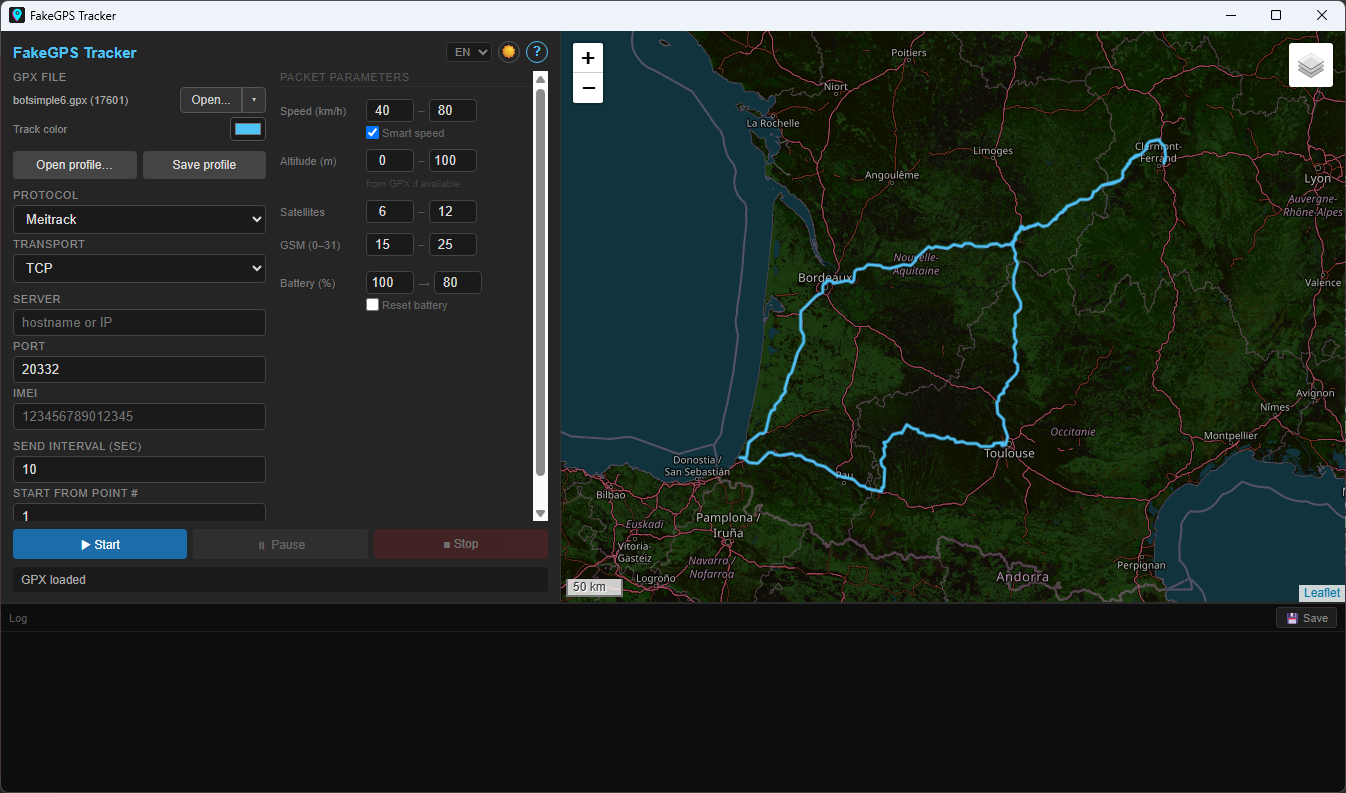
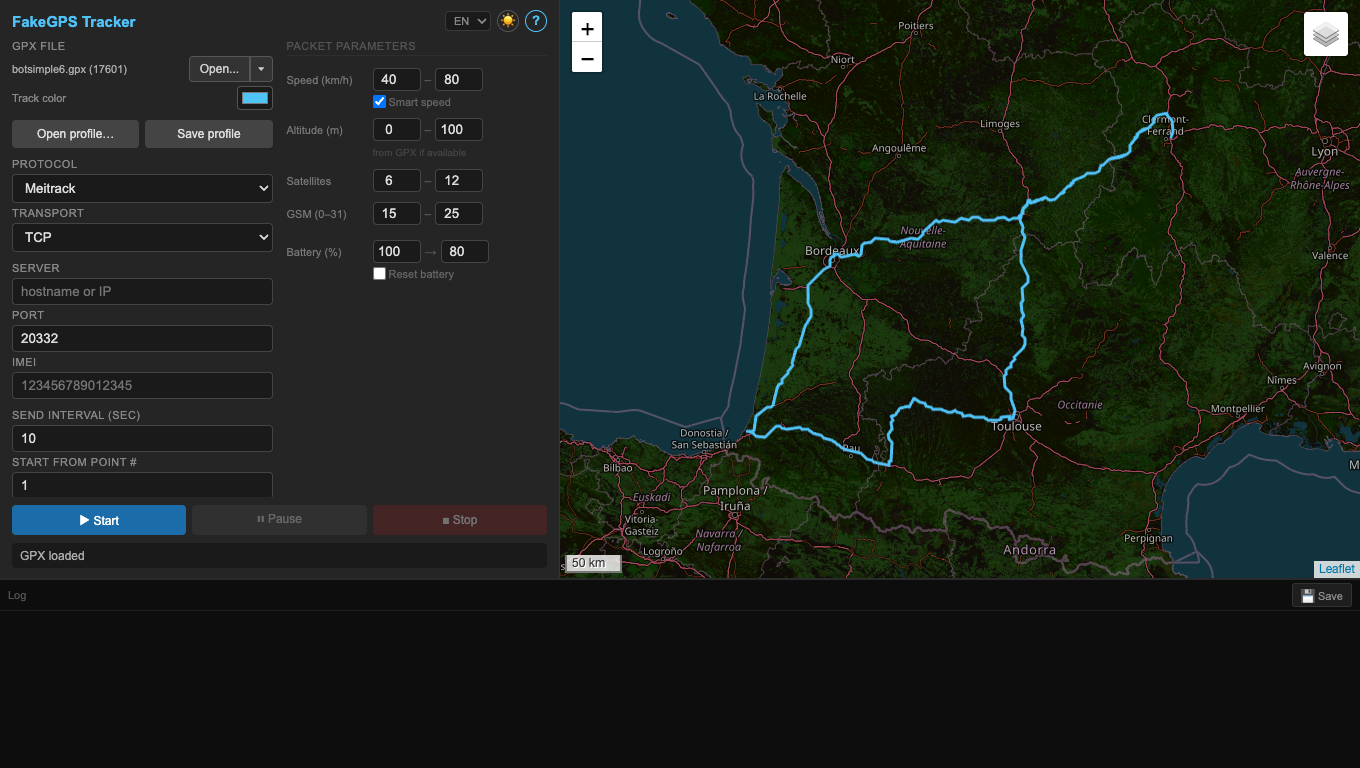
GUI packages include the app and CLI runtime. Standalone CLI packages are available for automation and servers.
Recommended packages for normal use.
Portable and full archives for manual installation.
Standalone CLI packages run without a graphical session and can start several profiles with different IDs.
Checksums and release notes.
On macOS, first launch may require System Settings → Privacy & Security → Open Anyway. See MACOS-FIRST-RUN.txt.